 NB Renamer Pro Manual
Content
Quick Start
User Interface
Directory Navigation
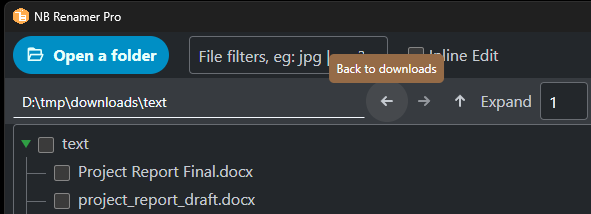
- Go
upto the parent directory,backandforwardfor folder navigation history:
- Go to a subdirectory
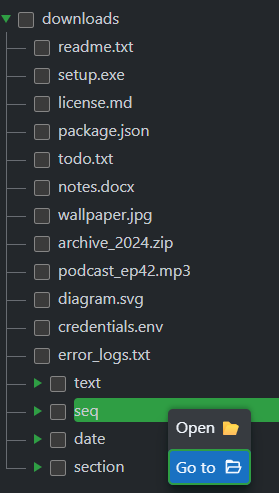
You can also Open the folder or file using the system default program, such as Windows File Explorer
Multiple File Selection
-
Mouse
Click the checkbox or file name (if you turned off checkboxes) to select the first one and
Shift+Click the last one💡 You can change the User Interface via Settings > UI > Show Checkboxes
-
Keyboard
Use
Taband arrow keys to navigate to the item,Spaceto select, then holdShift+Downto select downwards orUpto select upwards HitEnterto directly enter inline-edit mode
Preview Panel Interactions
- Select the file name - For text, it’ll be the text to replace or move; for section, it’ll set the section’s start and length
- Double-click the file name - (Only when Replace/Move Text) Select the word and populate into the input
- Right-click the file name - Set the From position in Range
Operations
- Replace - Replace text or section, re-sequence, re-format date.
Example: rename
IMG_001.jpg→Photo_001.jpgby replacingIMG_withPhoto_ - Insert - Insert text or sequence.
Example: add a
2024_prefix to all selected files - Move - Move text / section / sequence / date within the file name. Example: move a trailing sequence number from the end to the front
- Preset - Replace using preset rules such as clean up, changing to upper/lower cases. Example: strip illegal characters, or convert all names to lowercase
💡 Renaming can be done in multiple steps combining those operations. Undo or redo if the results are not satisfactory.
Parameters
Range
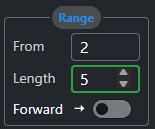
Range defines the segment of the file name that you would like to manipulate.
-
From - the start position of the range (starting from 0 by default)
💡
Right-clickthe file name in the Preview pane to populate the From value. -
Length - the length of a section, default Full
💡 Selecting a section of the file name in the Preview pane will populate the value for you.
-
Forward (default) - from the beginning, select forward (left-to-right)
-
Backward - from the beginning, select backward (right-to-left)
💡 Clicking Range/Section resets the values to default
Types
Text
Replace / Insert / Move text.
💡 (Advanced) Input will be treated as Regexp if the text starts with
/, e.g./^a. Don’t put /gi in the Regexp - chooseAllfor /g andCase-insensitivefor /i
Section
Replace / Move a fixed-length segment.
Sequence
Insert / Delete / Replace a sequence.
Parameters:
-
Digits
Minimum sequence digits. E.g. Digits is 3, then sequence 1 will be padded with 0 as
001. When Digits is 0, it means to DELETE the sequence found. In Insert operation, Digits is always greater than 0. -
Step
The increment / decrement step of the start number. E.g. Start is 1, Step is 2, then the sequence will be
1, 3, 5… When Step is 0 in Re-Sequence, it means to adjust the sequence digits only.E.g. existing sequence in file names is
1, 2, 3…, and Digits is 3, Step is 0, then the new sequence will be001, 002, 003… -
Start
The starting value of the sequence.
Date
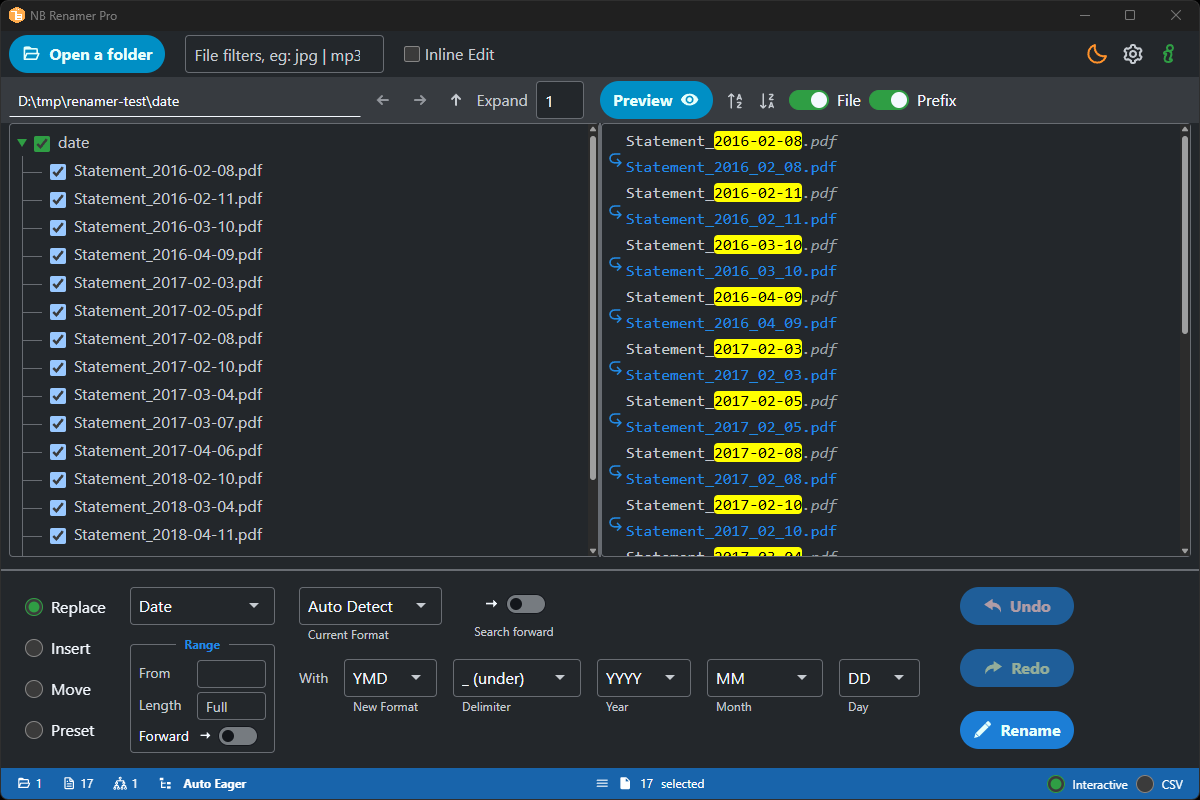
Find date elements in file names and reformat them.
-
Current Format Auto Detect should work most of the time. However, you can choose from the dropdown list if ambiguous.
-
With New Format The new year/month/day format
-
Year 4 digits / 2 digits / no year
-
Month 2 digits (MM) / 3-letter abbreviation (e.g., Aug) MMM / full (MMMM) / no month
-
Date 2 digits (with leading 0 if necessary) / 1 digit (no leading 0)
-
Delimiter
- . _ ,(Space)
⚠️ Currently Date type only supports English locale.
Batch Renaming Using a CSV File
In some cases, you may find it convenient to define a comma- or tab-delimited file for batch renaming.
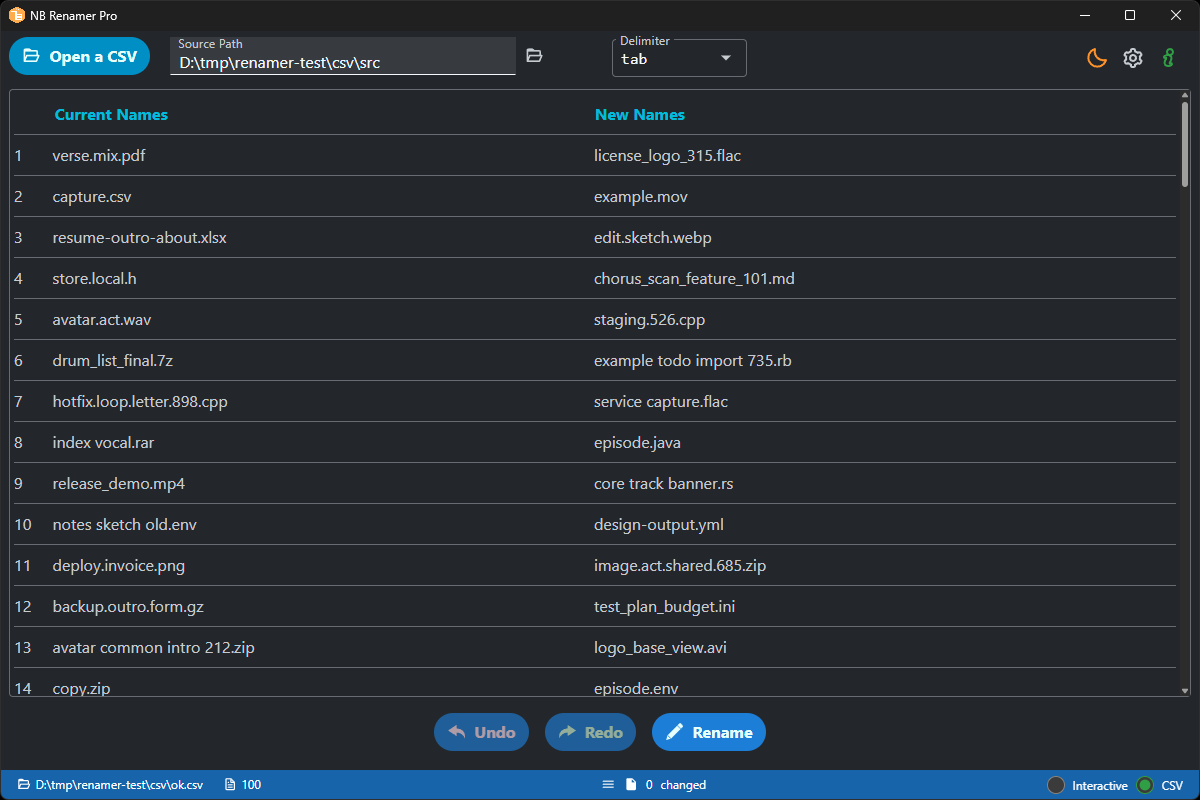
Switch to CSV Mode
At the right bottom of the footer, you can choose between Interactive (default) or CSV modes.
CSV Format
The file needs two columns and no header line:
Current File Name, New File Name
...
⚠️ DO NOT put a header line.
For example:
a.txt,x.txt
b.txt,y.txt
c.txt,z.txt
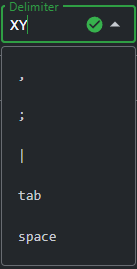
Delimiters
, ; | (space) (tab) are automatically recognized. You can also specify your own delimiter if needed:
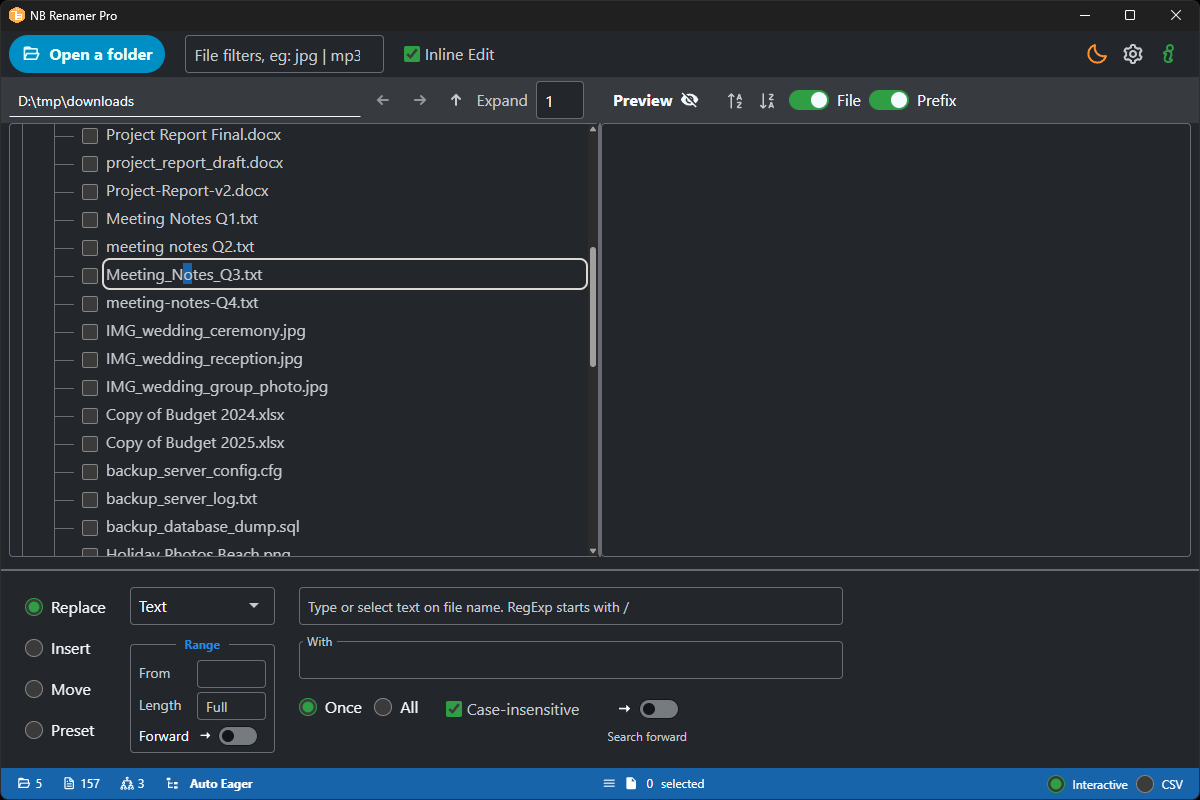
Inline Edit Renaming
In Inline Edit mode, you can directly edit file names in either the folder tree panel:
or the preview panel:
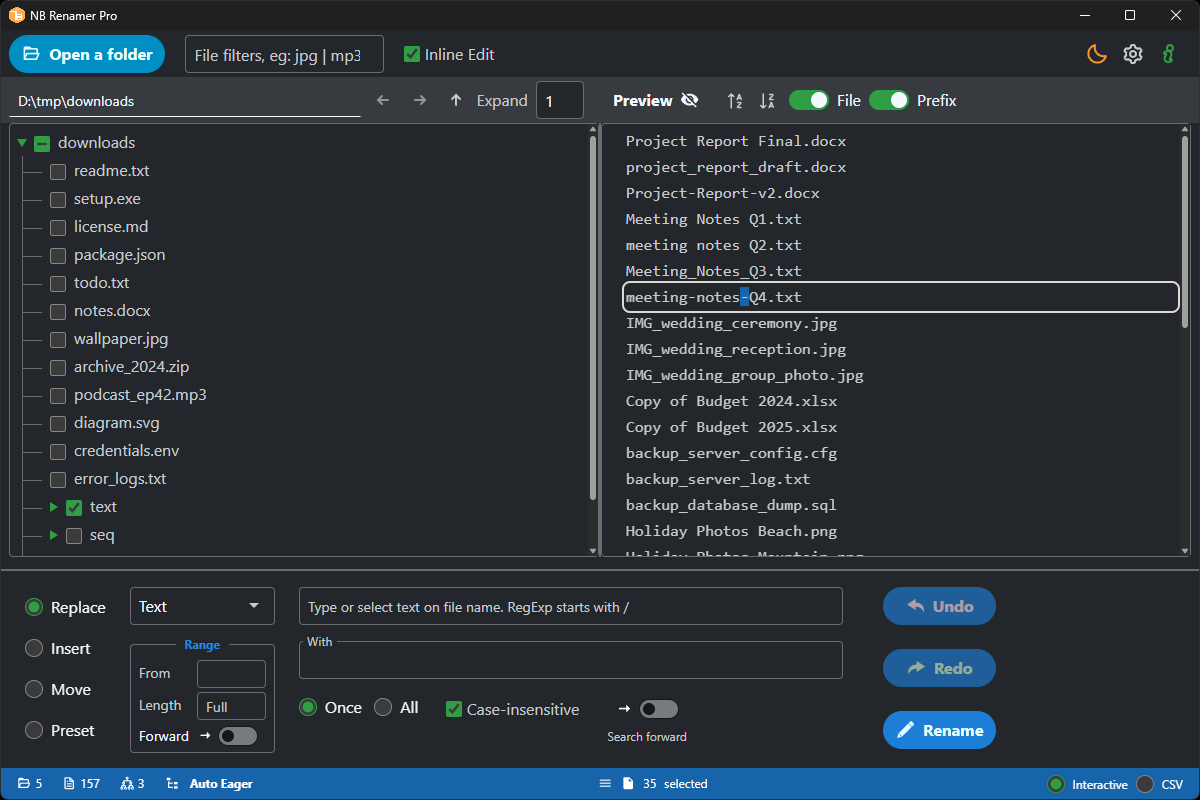
- Press
Enteron a selected item to start editing - Press
Enterto confirm the rename, orEscto cancel
Settings
On the header bar 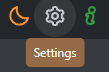
you can access:
- Theme - Choose between Dark and Light themes
- Settings - Change General settings such as Auto Preview, Language, etc., and UI (look & feel) settings
Keyboard Shortcuts
| Key | Action |
|---|---|
Tab / Arrow keys |
Navigate between items |
Space |
Select / deselect item |
Shift+Down / Up |
Extend selection downward / upward |
Shift+Click |
Select a range with mouse |
Enter |
Enter inline-edit mode for selected item |
Esc |
Cancel inline edit |